
Run a scan
Open Content Polisher and click Scan Website. Posts are read in small batches, so large sites are scanned without timeouts; keep the page open until the progress bar finishes. Nothing is changed during a scan.
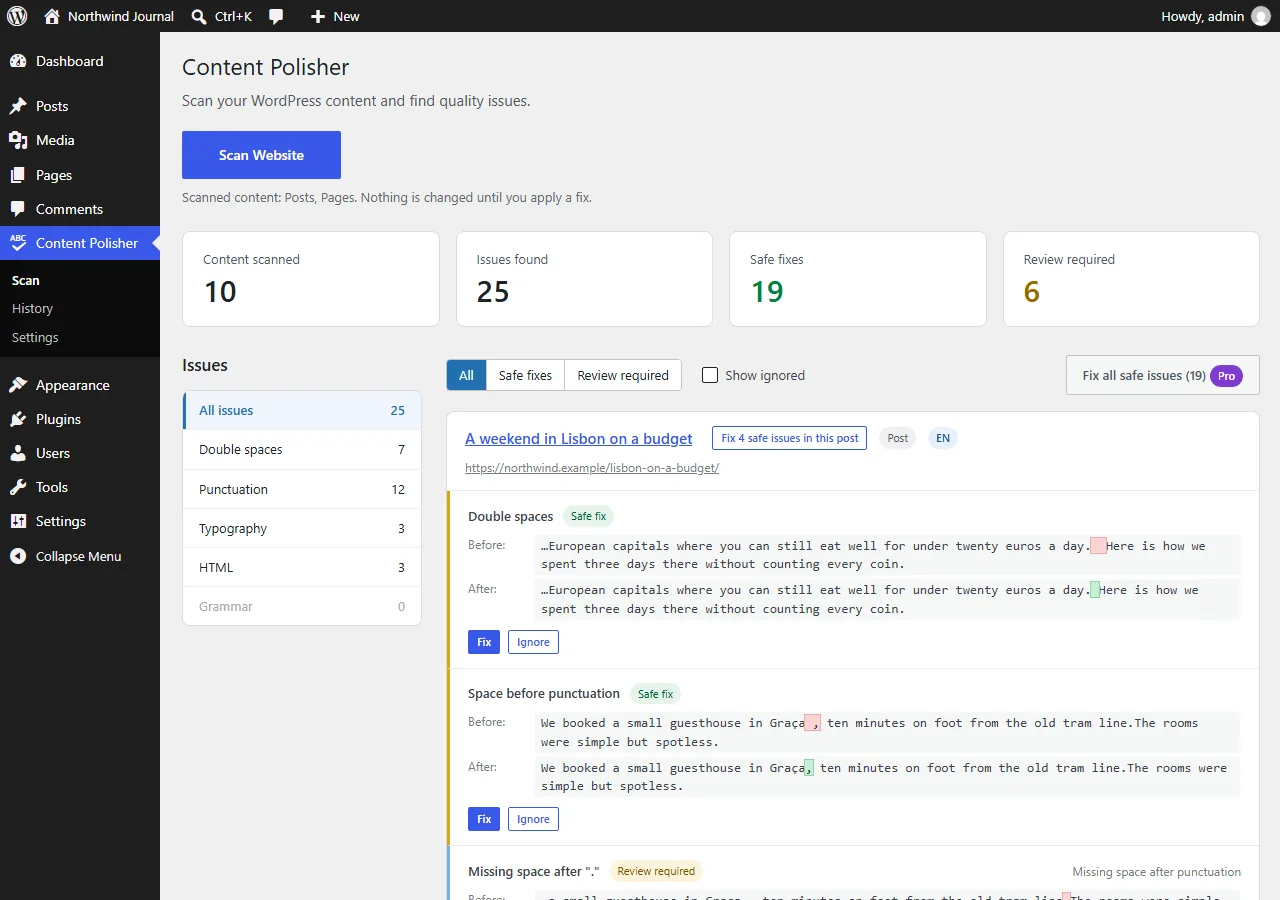
When it is done, the summary shows how many posts were scanned, how many issues were found, and how many of them are safe fixes or need review.
Review issues
- Use the list on the left to show one type of issue, or the All / Safe fixes / Review required filters.
- Each issue shows the rule, the category and a Before / After preview of the surrounding text, with the change highlighted.
- Issues are grouped by post, with a link to the post and its language.
Safe fixes and suggestions
| Type | Meaning |
|---|---|
| Safe fix | A clear-cut mistake, such as a double space. Safe to apply without reading it. |
| Review required | Probably a mistake, but it could be intentional — for example two line breaks in a row. Check the preview before fixing. |
Fix issues
- Fix applies one issue.
- Fix N safe issues in this post applies all safe fixes of a post in one change. Suggestions are left for you.
- Ignore hides an issue; it stays hidden in later scans. Turn on Show ignored to see and restore ignored issues.
After a fix, a notice confirms it with an Undo link. Every fix is also listed on the History page.
Pro: Fix all safe issues applies every safe fix of the whole site in one undoable operation.
When a post is skipped
- Someone else has the post open in the editor — try again when they are done.
- The post changed since the scan — run the scan again to get fresh issues.
- The page is built with a page builder that stores its content elsewhere (Elementor, Beaver Builder, SiteOrigin, Brizy, Oxygen, Bricks, Thrive Architect). See What is never changed.